
Choosing QHD, Ultrawide or 4K for a Gaming Monitor Range
Compare pixel workload, desk fit and source compatibility before choosing QHD, 3440 x 1440 ultrawide or 4K gaming displays for your range.
2026-09-17T16:00:00+00:00
Published by HeCai Computer. Contact us about a correction or model-specific question.
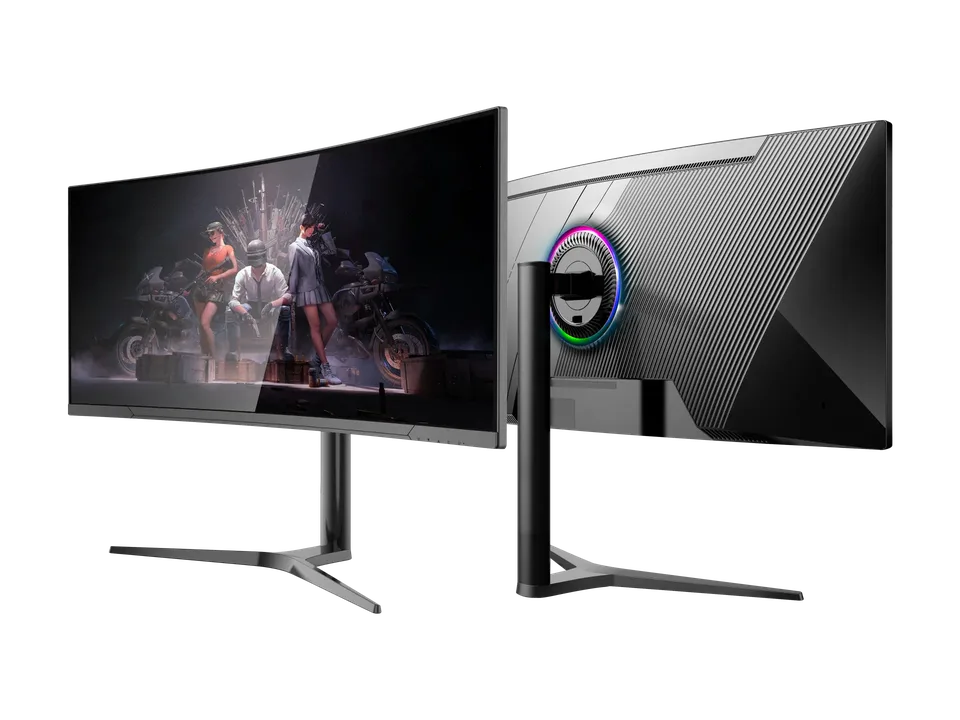
A useful monitor range starts with a customer and a computer, not a resolution label. A competitive player trying to maintain a high frame rate, a racing enthusiast wanting a wider view and a user combining games with detailed desktop work may need three different displays. Resolution helps position those products, but it does not describe their whole experience.
Read the pixel dimensions first
QHD and WQHD commonly refer to 2560 x 1440. UWQHD often refers to 3440 x 1440, but ultrawide naming is not fully consistent between sellers. For desktop monitors, 4K usually means 3840 x 2160 UHD. Put the numerical resolution in a product specification so a customer does not have to interpret the abbreviation.
| Common desktop format | Pixels per frame | Main consideration |
| 2560 x 1440 | About 3.69 million | A balance between image detail and graphics workload |
| 3440 x 1440 | About 4.95 million | Additional width, with application and game support to check |
| 3840 x 2160 | About 8.29 million | Fine detail with a greater potential rendering workload |
Do not turn pixel count into an FPS prediction
4K contains 2.25 times as many pixels as 2560 x 1440. That is not a promise that frame rate will fall by the same proportion. Game engine, graphics settings, CPU limits, ray tracing and upscaling all affect the result. Compare the target games on representative hardware rather than promising performance from the monitor resolution alone.
Check what the source can actually display
A computer may support an ultrawide desktop while a console or individual game supplies only a 16:9 picture. The result can be side bars, scaling or a selectable compatibility mode. Verify the source's output resolution and refresh choices, then check the monitor's supported timings on the intended HDMI or DisplayPort input.
Test desk fit as well as the picture
A 34-inch ultrawide and a 32-inch 16:9 monitor do not have the same proportions. Measure screen width, base depth and the user's viewing distance. For desktop work, compare text at a comfortable scaling setting. A high-resolution screen can show finer text without making small text comfortable for every user.
Build a comparison sheet that customers can use
- Identify the actual panel resolution and screen format.
- List the supported resolution/refresh pairing for each relevant input.
- Test the intended computer or console, including its cable.
- Compare motion clarity, stand adjustment and warranty terms separately.
- Give each configuration its own description rather than combining family-level maximum figures.
For a quotation, send the intended games or applications, source hardware and preferred screen size. Those details make it easier to compare realistic configurations instead of selecting by a headline number.
Apply This Guide to Your Purchasing Project
- Compare relevant models
Compare published specifications before choosing a configuration for sampling.
- Plan an OEM project
Discuss artwork, housing, connections and the sample approval process.
- Prepare a wholesale inquiry
State your destination, quantities, schedule and model requirements for a written quotation.