
Using a Computer Monitor for Streaming and Television
Plan the video source, sound, remote control and supported formats needed to use a desktop monitor for streaming or television viewing.
2026-09-26T16:00:00+00:00
Published by HeCai Computer. Contact us about a correction or model-specific question.
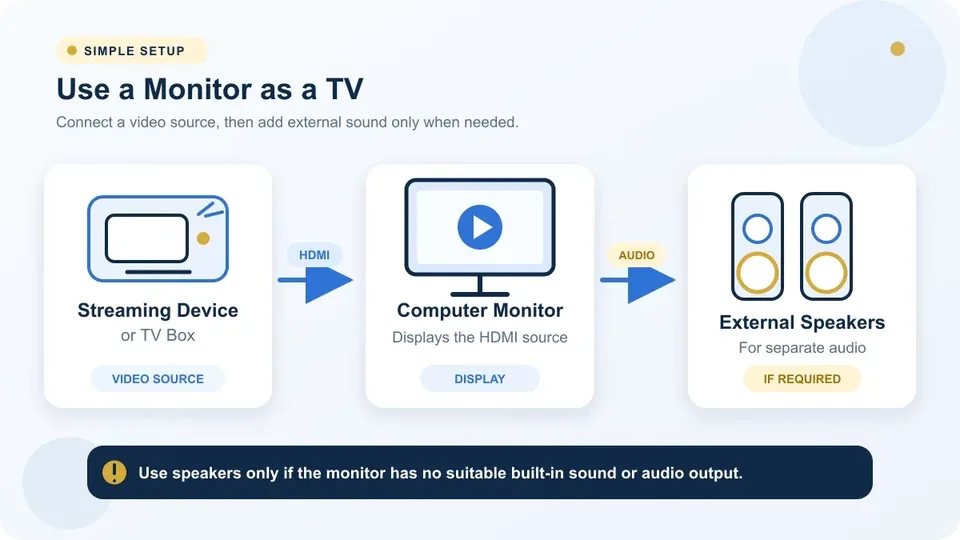
A monitor can display television programs when another device supplies a compatible video signal. The practical question is not whether the screen can show video, but which device will handle channels, streaming applications, sound and everyday controls. Plan that complete chain before buying accessories.
Decide where the programs will come from
A streaming stick or set-top box can provide internet services through HDMI. A cable or satellite receiver handles its own subscription and channel selection. Over-the-air broadcasting generally requires a tuner compatible with the local broadcast standard and an appropriate antenna. A monitor without a tuner cannot receive those broadcasts by connecting an antenna directly.
| Viewing source | What to check |
| Streaming device | HDMI output, network access, service availability and power |
| Cable or satellite receiver | Subscription, supported output timing and remote control |
| Broadcast tuner | Regional broadcast standard and antenna requirements |
| Computer | Application access, playback controls and audio route |
Check the video mode before the accessories
Match the source's resolution and refresh rate to a supported monitor timing. Many television devices use standard 16:9 modes rather than an ultrawide monitor's native format. Protected streaming content may also require an appropriate HDCP-compatible signal chain. If menus appear but a program does not, test the device directly on the monitor before adding splitters or converters.
Give sound its own connection plan
HDMI can carry audio, but a monitor still needs speakers or a usable audio output to make that audio audible. Check whether its 3.5 mm socket is an output rather than an input. An external speaker system, a source-device Bluetooth connection or a compatible audio extractor may be alternatives, each with its own controls and possible delay.
Consider the controls used every day
A television typically provides a remote and integrated volume controls. A desktop monitor may require physical buttons for input selection and volume. HDMI-CEC behavior is not universal on monitors, so do not assume a streaming remote will switch monitor power or adjust its sound. Test the controls with the intended devices.
Run a short installation check
- Connect one source directly with a suitable HDMI cable.
- Select a supported output resolution and verify the image proportions.
- Play protected content from the actual service, not only a device menu.
- Confirm audio and lip synchronization at the normal listening level.
- Test power-off, wake-up and input selection from the expected seating position.
This approach can suit a small desk or an occasional viewing setup. For a living room, also compare viewing angles, remote convenience, broadcast support and the audio system rather than assuming a monitor will behave exactly like a television.
Apply This Guide to Your Purchasing Project
- Compare relevant models
Compare published specifications before choosing a configuration for sampling.
- Plan an OEM project
Discuss artwork, housing, connections and the sample approval process.
- Prepare a wholesale inquiry
State your destination, quantities, schedule and model requirements for a written quotation.