
Fixing a Stretched Display Without Guessing at Settings
Identify whether distortion comes from desktop resolution, application scaling or the monitor before changing aspect-ratio settings.
2026-09-28T16:00:00+00:00
Published by HeCai Computer. Contact us about a correction or model-specific question.
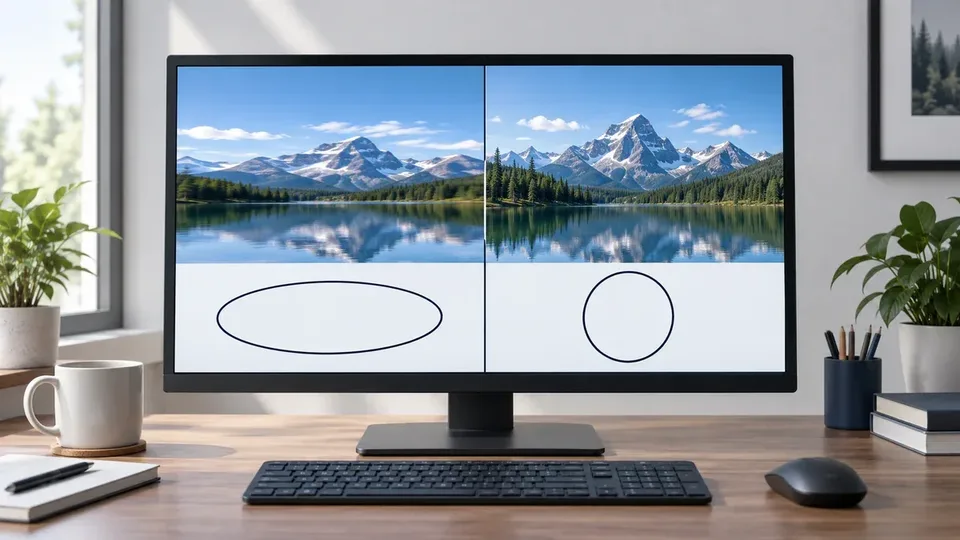
When a circle becomes an oval or people look unusually wide, the image proportions are wrong somewhere in the signal path. The fastest repair is to identify where that distortion first appears. Changing several scaling settings at once can hide the cause and make the next connection difficult to diagnose.
Determine how much of the picture is affected
If the whole desktop is stretched, start with the operating system and monitor. If only one game or video is distorted, start inside that application. If the problem occurs only when duplicating two displays, the computer may be choosing a shared timing that is not native to both screens.
Restore the monitor's native resolution
In the operating system's display settings, select the affected monitor and choose its native or recommended resolution. Make sure you are editing the correct display. If that resolution is missing, check the cable, adapter, graphics driver and supported input modes before forcing a custom timing.
Keep scaling proportional
In a graphics control panel, aspect-preserving scaling keeps the original shape and may leave black bars. Full-screen scaling can fill a differently shaped panel by stretching the image. The monitor may have a separate aspect or display-mode setting, so check whether both the GPU and the monitor are trying to scale the same signal.
| Symptom | First useful check |
| Entire desktop is wide or narrow | Selected resolution and scaling mode |
| Only one game is distorted | Game resolution and screen-format settings |
| Video has black side bars | Content format; bars may preserve the correct proportions |
| Problem only in duplicate mode | Try extended displays with native modes |
Do not confuse scaling with usable workspace
Operating-system text scaling changes the size of interface elements and is not normally an aspect-ratio correction. Making text 125% or 150% can improve readability without distorting shapes. Conversely, stretching a lower-resolution signal to fill an ultrawide screen changes proportions even if the text looks large enough.
Finish with a reproducible check
- Use a simple image containing a circle and square.
- Confirm the active signal resolution and refresh rate.
- Change one scaling setting, then compare the shapes.
- Reopen the affected application and check its own display mode.
- Reconnect or restart the source to confirm the correction persists.
If the native mode is still unavailable through a direct connection with a suitable cable, collect the monitor model, graphics output and adapter details for support. Avoid unverified custom timings as a first-line fix.
Apply This Guide to Your Purchasing Project
- Compare relevant models
Compare published specifications before choosing a configuration for sampling.
- Plan an OEM project
Discuss artwork, housing, connections and the sample approval process.
- Prepare a wholesale inquiry
State your destination, quantities, schedule and model requirements for a written quotation.