
Collecting Monitor EDID for a Useful Support Report
Learn what EDID can and cannot prove, how to capture it safely and which connection details make an EDID troubleshooting report useful.
2026-09-25T16:00:00+00:00
Published by HeCai Computer. Contact us about a correction or model-specific question.
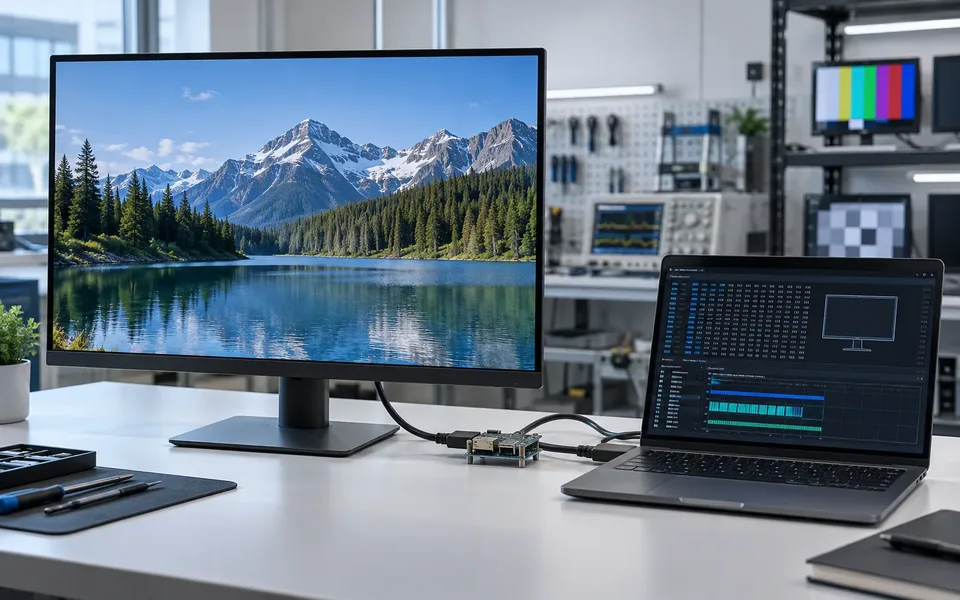
EDID is identification and capability data supplied through the display connection. It can help explain why a source offers a particular resolution or refresh mode. It is evidence about what the signal chain reports, not a measurement of the panel's brightness, response time or actual color gamut.
Capture the connection you are investigating
Start with the monitor connected directly to the source whenever possible. A dock, KVM, converter or receiver can supply cached or modified information. Record the input, cable path and whether other displays are attached. If a problem occurs only through a dock, capture both the direct and docked cases and label the files clearly.
Choose a read-only collection method
On Windows, a trusted display-information utility may export the connected monitor's EDID. Use a read-only export rather than creating an override. On macOS, availability depends on the hardware, operating-system version and connection; a diagnostic report or trusted utility may be required. Do not assume one registry command will expose raw EDID on every Mac.
On Linux systems exposing DRM connector data, the corresponding connected output may provide an EDID file under /sys/class/drm/ . Connector names vary. Identify the connected output, copy its EDID without modifying device files, then inspect the copy with a suitable decoder. A zero-length result can mean no data is exposed for that connection.
Keep the original data with the decoded result
Retain the binary file as well as a text interpretation when possible. Record the export tool and version. Checksums, extension blocks and preferred timings are useful diagnostic details, but a valid checksum only verifies the block's internal checksum; it does not establish that every claim in it is correct.
Do not treat EDID as a performance certificate
A listed mode may still require a particular input, bandwidth or source setting. HDR-related data does not establish peak brightness or dimming quality. Color coordinates are reported information rather than a sensor measurement. Monitor names and serial fields may be generic or absent, especially through intermediaries.
Send a report that support can reproduce
- Monitor model, selected input and relevant OSD settings.
- Computer or console, graphics hardware and operating-system version.
- Direct cable route or the exact dock and adapter models.
- Expected mode, currently available mode and a screenshot of display settings.
- Original EDID capture, export method and the date of the test.
Review the file before sharing it publicly because it may contain a display serial number. Do not edit or install an EDID override merely to obtain a report; an incorrect override can create unsupported modes and complicate diagnosis.
Apply This Guide to Your Purchasing Project
- Compare relevant models
Compare published specifications before choosing a configuration for sampling.
- Plan an OEM project
Discuss artwork, housing, connections and the sample approval process.
- Prepare a wholesale inquiry
State your destination, quantities, schedule and model requirements for a written quotation.
Technical Standards & Further Reading
Use the official standards below when evaluating a display specification. Product support and certification must be confirmed for the exact model and configuration.