
Troubleshooting an HDMI Connection That Drops When Moved
Isolate cable strain, connector seating and bandwidth problems safely when an HDMI picture flickers or disappears as the monitor moves.
2026-11-02T16:00:00+00:00
Published by HeCai Computer. Contact us about a correction or model-specific question.
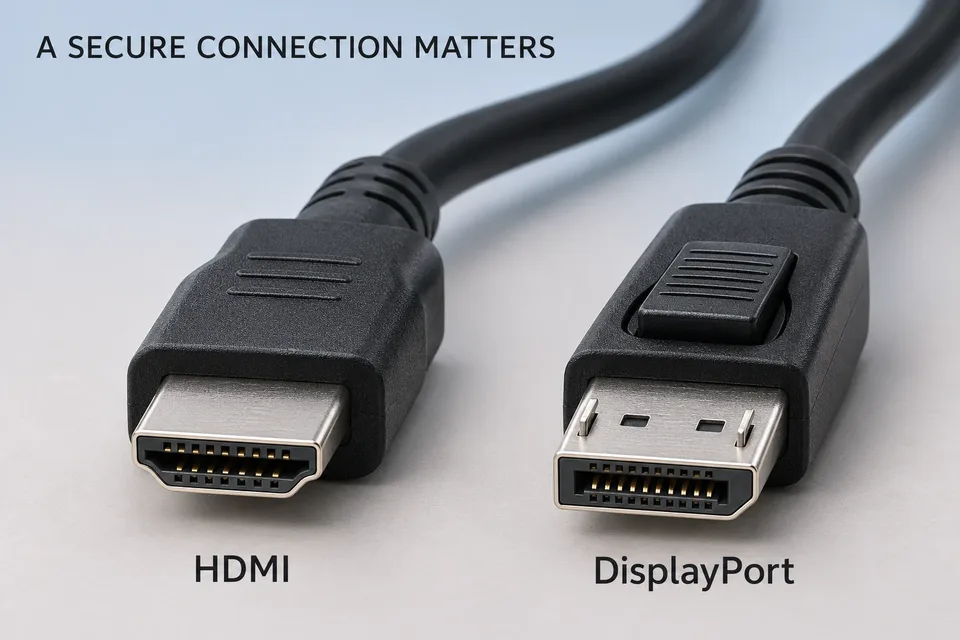
A picture that disappears when a cable moves suggests a physical connection problem, but it does not prove which component has failed. A strained cable, damaged plug, loose socket or adapter can all interrupt the signal. Begin with safe, reversible checks before replacing the monitor.
Remove strain before reseating the plug
Switch off the connected equipment as appropriate and support the cable so its weight is not hanging from the port. Inspect the plug and socket without inserting tools. Reconnect the plug squarely and fully without force. If the socket visibly moves inside the housing or is damaged, stop repeated movement tests and request service.
Use one direct cable as a reference
Remove extensions, adapters, switches and docking stations temporarily. Try a known-good cable appropriate for the required video mode and length. Keep the source, monitor input and display timing unchanged for the first comparison so only the cable changes.
Distinguish mechanical faults from signal-margin problems
A link may work at a lower resolution or refresh rate but fail at a more demanding mode. That can indicate a cable, adapter or port limitation rather than a physically loose plug. Test a lower supported mode as a diagnostic step, then verify that every part of the intended setup supports the required bandwidth.
| Observation | Next comparison |
| Failure follows one cable | Replace that cable with a suitable known-good one |
| Failure follows one monitor input | Compare another supported input and request service if needed |
| Only a docked setup fails | Test directly, then check dock capability and power |
| Only high-demand modes fail | Check the complete signal chain's supported timing |
Route cables for the stand's movement
Leave a controlled loop of slack for tilt, swivel and height changes. Secure cables to a suitable routing point without crushing them or pulling the connector sideways. Check clearance again with the screen at the edges of its normal adjustment range.
Avoid improvised socket repairs
Do not wedge material into a connector, bend contacts, glue a plug in place or add tape that forces it sideways. These approaches can damage the socket and make later service more difficult. Also avoid assuming every DisplayPort plug locks; release mechanisms vary and must be used according to the cable design.
For a support report, note the source device, cable length, exact display mode and which controlled swap changed the symptom. That evidence is more useful than reporting only that the HDMI connection feels loose.
Apply This Guide to Your Purchasing Project
- Compare relevant models
Compare published specifications before choosing a configuration for sampling.
- Plan an OEM project
Discuss artwork, housing, connections and the sample approval process.
- Prepare a wholesale inquiry
State your destination, quantities, schedule and model requirements for a written quotation.
Technical Standards & Further Reading
Use the official standards below when evaluating a display specification. Product support and certification must be confirmed for the exact model and configuration.