
Diagnosing Lines on a Monitor with Controlled Comparisons
Use the monitor menu, an alternate cable and a second source to isolate vertical or horizontal lines safely before requesting repair.
2026-09-25T16:00:00+00:00
Published by HeCai Computer. Contact us about a correction or model-specific question.
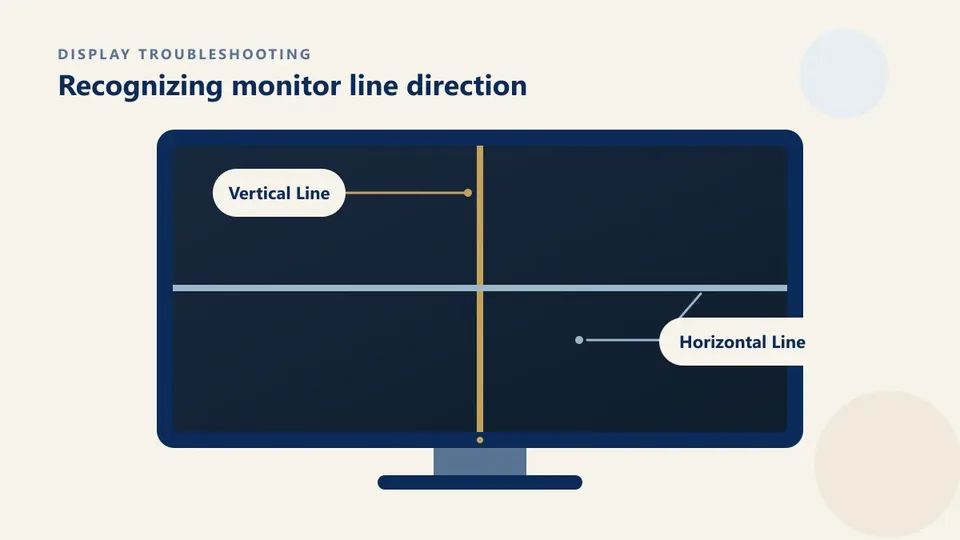
A line's color or direction does not identify a failed component by itself. Similar symptoms can come from a cable, source output, application or an internal monitor fault. A controlled sequence of comparisons gives support useful evidence without opening the monitor or applying pressure to the screen.
Record the symptom before changing anything
Take a photograph showing the complete display and a closer view of the line. Note whether it is fixed, intermittent, visible only after warming up or limited to one application. Record the active resolution, refresh rate and connection path. A screenshot can help distinguish source rendering from something occurring later in the chain, but no single screenshot is conclusive.
Open the monitor's own menu
Check whether the line appears over the on-screen menu. If the model provides a self-test, use it according to the manual. You can also disconnect the video input and inspect any built-in no-signal screen. Lines still visible in internally generated content point attention toward the monitor rather than the application, although service is needed to determine the component.
Swap one part of the signal chain at a time
- Reseat the connection carefully and remove unnecessary adapters.
- Try a known-good cable suitable for the required mode.
- Try another input on the monitor with a supported connection.
- Compare a second source device on that same monitor.
- If practical, compare the original source on another display.
Keep a short record of which change removed the symptom. Swapping the source, cable and timing together may restore the picture but leaves the cause unclear.
Check timing without assuming a cure
Return the screen to its native resolution and a supported refresh rate. A lower supported refresh mode can be a diagnostic comparison if the current link is unstable. If the symptom changes, inspect cable bandwidth, adapters and source settings; do not conclude that the panel is healthy solely because one lower mode works.
Stop before physical repair attempts
Do not press the bezel, twist the panel, apply heat or open the monitor. Those methods can worsen damage and may involve electrical hazards. A persistent line visible in the monitor's internal menu, or a symptom reproduced with multiple known-good sources and cables, is a reason to seek authorized service.
Send the model, serial number, photos, active timing and comparison results with the service request. Keep the original files and purchase information. This allows support to assess the issue more accurately than a report describing only a green, black or horizontal line.
Apply This Guide to Your Purchasing Project
- Compare relevant models
Compare published specifications before choosing a configuration for sampling.
- Plan an OEM project
Discuss artwork, housing, connections and the sample approval process.
- Prepare a wholesale inquiry
State your destination, quantities, schedule and model requirements for a written quotation.